Friday, March 29, 2019

Man Pleads Guilty to Accessing Apple Accounts of Famous Athletes and Musical Artists


Apple has a gigantic focus on security and privacy, which definitely still feels like a reaction to high-profile hacking events several years ago.

In particular, the celebrity accounts that were hacked and certain sensitive photographs were distributed across the internet. The individuals accused of that particular digital break-in have been sentenced, including a former high school teacher who was recently sentenced to 34 months in prison over the hack.

Now, a man based out of Georgia has pleaded guilty to hacking into several different Apple accounts that are owned by athletes and rappers. Not only that, the accused distributed thousands in funds from the victims’ accounts. The individual in question has been identified by the United States Department of Justice as Kwamaine Jerell Ford, age 27. The court documentation reveals that Ford used a phishing scam to gain credential information from NFL and NBA athletes, as well as high-profile musical artists.

Ford used an email phishing scam to get the log-in credentials, posing as an Apple support representative. At the time of publication, the Justice Department has not revealed which athletes or artists were hacked.

After gaining control of the accounts, Ford then changed certain elements so that the account owners could not access them on their own. Ford used the funds he distributed from the victims’ accounts to cover travel expenses, and also bought a range of other things, including home furniture.

“The high profile victims in this case are an example that no matter who you are, hackers like Ford are trying to get your personal information,” said FBI special agent Chris Hacker. “This case demonstrates the need to be careful in protecting personal information and passwords, especially in response to suspicious e-mails. Hopefully this is a lesson for everyone, not just the victims in this case.”

Ford has been in the sentencing part of the case for quite some time. Back in April of last year, he was charged with a variety of counts, including wire fraud, computer fraud, and aggravated identity fraud. At this latest trial, Ford officially pleaded guilty to only one count of aggravated identity theft and computer fraud.

Final sentencing will take place later this summer.
Our Take

These high-level hacks aren’t common, but when they happen they have consequences. Not only for those undertaking the crimes, but also the companies attached to them. Apple has doubled down and security and privacy as a result, much to the chagrin of law enforcement agencies like the FBI in the United States.
We Want To Hear From You

What do you think Ford should be sentenced to for the crimes he committed?

[via The Verge]

Also Read:jihosoft Free iPhone Data Recovery

Sponsor ads:

Gihosoft Free iPhone Data Recovery:https://www.gihosoft.com/iphone-data-recovery-free.html

Gihosoft iPhone Data Recovery Free

Free iPhone Data Recovery Software for Windows/Mac

Recover up to 12+ types of files, including contacts, SMS, photos, WhatsApp, Viber, notes, etc.

Restore lost data from iOS devices directly or from iTunes and iCloud backup

Recover iPhone data lost due to iOS upgrade/jailbreak, accidental deletion, device lost or broken

Support all the latest iPhone, iPad and iPod Touch

Both Free and Pro version.

If you lost data after you updated to a new iPhone, you can always use Gihosoft iPhone Data Recovery to get the data back from the old iPhone or backup.You may also like: iphonerecovery.com

Also Read:Update Android

Also Read:Top 8 Best Alternative Websites to TamilGun in 2019

Also Read:Free Download FRP Bypass APK for Android 2019

Also Read:Best 10 Movie4k Alternative Websites for Movie Streaming 2019

Tuesday, March 12, 2019

How to jailbreak iPhone XS/XS Max/XR on iOS 12

How to jailbreak iPhone XS/XS Max/XR on iOS 12

The latest build of unc0ver jailbreak adds support for A12-chip models. Here’s how you can download and install it on iPhone XS, XS Max and iPhone XR.
UNC0VER NOW SUPPORTS A12(X)-CHIP DEVICES

Yes, you heard that right. unc0ver jailbreak 3.0 is now compatible with A12 and A12X devices.

But here’s the catch – you can’t install or run Cydia tweaks on your iPhone or iPad; the reason being the lack of a functional Substrate version.

Thankfully enough, development is going on in full swing behind the scenes with Pwn20wnd releasing beta updates on a regular basis.

So, it shouldn’t take long for Saurik to add support for iPhone XS and other iOS devices, now that the jailbreak is ready.


As of this writing, the latest build of unc0ver jailbreak is Beta 45, which has the following features –


Export/Unexport Kernel Task Port


Dump APTicket (onboard SHSH Blob)


Overwrite the Boot Nonce


Set HSP4 as TFP0


Log Slide


Log ECID


Stop automatic OTA updates


Remount root filesystem as read/write


Restore root filesystem


Disable app revokes
WHICH A12/A12X DEVICES ARE COMPATIBLE?

All devices that have an A12 or A12X processor are compatible with iOS 12 jailbreak. Here’s the complete list of supported models –


iPhone XS


iPhone XS Max


iPhone XR


iPad Pro (11-inch)


Third-generation iPad Pro (12.9-inch)
REQUIREMENTS


iPhone XS/XS Max/XR


iOS 12.0-12.1.2 firmware


A computer running Windows, Linux, or macOS


Cydia Impactor


Lightning-to-USB cable


Internet connection
HOW TO JAILBREAK IPHONE XS (MAX) AND IPHONE XR ON IOS 12
WITH COMPUTER

Step 1 Firstly, you will want to download the IPA file of unc0ver jailbreak from this link. Once the IPA file is ready, place it on your desktop

Step 2 Download Cydia Impactor from this link and connect your device to your computer.

Step 3 Start Cydia Impactor and drag the IPA file you downloaded in step 1 over to its window.


Step 4 Enter your Apple ID and password to authenticate the installation. Wait for the installation to complete.


Step 5 Once the app appears on your home screen, launch it and tap Jailbreak. If everything goes right, the exploitation process will commence.

Remember, your iPhone or iPad will start multiple times during the exploitation. This is a totally normal occurrence and you should let the app do its thing until all steps are carried out.


Step 6 When the app displays the “Jailbreak completed” message, your device should be jailbroken.


WITHOUT COMPUTER

Step 1 Open Safari web browser and visit this URL – https://ignition.fun/

Step 2 Select the Use Now (Web) to install the jailbreak app without installing Ignition. Alternatively, you can select Install Now (App) to select the installer. However, for the sake of this tutorial, the first option shall suffice.

Step 3 Now navigate to the second tab present at the bottom of the toolbar.

Step 4 Select unc0ver new Beta and tap GET.

Step 5 Tap the Install button when your device prompts you to install the app.

Step 6 Don’t open the app just yet. Instead, open the stock Settings app, go to General > Profiles & Device Management and trust the enterprise certificate tied to unc0ver app.

Step 7 Launch the jailbreak application from your home screen and tap Jailbreak.


Step 8 Wait for the exploitation process to complete.


Since Saurik is yet to update Cydia Substrate for A12 devices, you will have to make do with what you’ve got.

All in all, the current beta version has nothing of value to offer except for blocking updates and disabling app revokes.

However, if you are interested in doing manual which obviously I wouldn’t recommend at this stage, go ahead and install FilzaEscaped or GeoFilza Filza replacement for iOS 12. Also Read:5 Best ExtraTorrent Alternatives after ExtraTorrent Shut Down Permanently 2019!
Also Read:What Is Service Host SuperFetch | Fix 100% Disk Usage in Windows 10

Also Read:5 Best Free MP3 Tag Editors for You to Download on Windows 10/8/7 2019

Also Read:How to Make Funny Memes on iPhone & Best Meme Maker Apps in 2019

Monday, March 4, 2019

How to Remove Two-step Verification 2019


What is Two-step Verification?

Do you know why Apple devices are very secure? It is because of its security settings like two-step verification, two-factor verification for your device. The Two-step verification is a security feature for Apple ID that’s designed to prevent anyone else from accessing or using your account, even if they know your password.

This feature is so secure because it requires you to verify your identity using one of your devices or another approved method before you can:


Sign in to your Apple ID account page


Sign in to iCloud on a new device


Sign in to iMessage or FaceTime


Make an iTunes, Apple Books, or App Store purchase from a new device


Get Apple ID-related support from Apple
How to Remove Two-step Verification

If you don’t want to use the two-step verification for your device anymore, you can follow the steps below to remove it.


Sign in to your Apple ID account page.


In the Security section, Click Edit.


Click Turn Off two-step verification.


Create new security questions and verify your date of birth.


You'll get an email confirming that two-step verification for your Apple ID is off.Also Read:Top 6 Windows Photos Alternatives to View Photos on Windows 10
Also Read:XD Card Recovery – Recover Deleted Photos from xD-Picture Card
Also Read:How to Convert SWF to MP4 on Mac or Windows
Also Read:How to Fix the “Black Screen of Death” on iPhone XS/X/8/7

iOS 12 Overheating? Quit All Running Apps First


iOS 12 Overheating? Quit All Running Apps First

As is known to all, iOS keeps previously opened apps running in the background, and this adds more workload on the processor. The more commands your device carries out per time, the more it gets exhausted and overheats. Consequently, it is advisable to close all background apps as often as possible to lessen workload and overheating tendencies.

To close running apps on your device with iOS 12:


Press the Home button twice to display opened apps thumbnails.


Swipe up the thumbnails of each opened app


Repeat until all opened apps are closed.


Never Using iPhone While Charging

Also Read:5 Best Music Player for PC to Free Download 2019

Also Read:Top 6 Best Alternative Sites to YTS Torrent Movie Website 2019

Phone charging is a heat-generating activity. While it is understandable that we bunch of work on our phones, thus requiring it to be in constant use, it is important to avoid using your iPhone while it’s charging. Leave it to get full, and use afterward.
You Can Also Restart Your iPhone

Sometimes, iOS 12 overheating due to overworking and just needs to rest and reload. So next time you notice overheating, simply restart it by turning it off for some few minutes, and then back on. This gives the device some time to cool off.
iOS 12 Still Overheating? Reset All Settings

When encountering iOS 12 overheating issues, one sure solution is to reset all your current settings. As a matter of fact, tons of iOS issues can be solved just by resetting the device settings. This process actually resets your device to default settings, so it clears the settings you have previously made, like home screen layout, themes, language, keyboard, privacy settings, Wi-Fi networks, passwords, etc.

To reset your device settings:


Go to Settings and click on General


Click Reset, and then Reset All Settings


Enter your Password if asked, and Click Reset All Settings again.


Your device settings will restart with the default settings.


More than frequently, this method dependably fixes iOS 12 overheating issues on the iPhone, plus other problems caused by malfunctioning apps. So you might want to give it a shot next time your iPhone overheats and check if it works- it most likely will.Also Read:jihosoft Free iPhone Data Recovery

Sponsor ads:

Gihosoft Free iPhone Data Recovery:https://www.gihosoft.com/iphone-data-recovery-free.html

Gihosoft iPhone Data Recovery Free

Free iPhone Data Recovery Software for Windows/Mac

Recover up to 12+ types of files, including contacts, SMS, photos, WhatsApp, Viber, notes, etc.

Restore lost data from iOS devices directly or from iTunes and iCloud backup

Recover iPhone data lost due to iOS upgrade/jailbreak, accidental deletion, device lost or broken

Support all the latest iPhone, iPad and iPod Touch

Both Free and Pro version.

If you lost data after you updated to a new iPhone, you can always use Gihosoft iPhone Data Recovery to get the data back from the old iPhone or backup.You may also like: iphonerecovery.com

If you use android phones, please choose Gihosoft Android Data Recovery.

With Gihosoft Android Data Recovery, no longer afraid of data loss!

Must read:Youtube video downloader for pc

Gihosoft RePicvid Free Photo Recovery Software provides a free photo recovery software for windows to help users recover the deleted or lost photo for free.

Jihosoft Android Data Recovery: the best Android Data Recovery software for Windows and Mac to recover deleted contacts, messages, photos, videos, WhatsApp and etc from Android devices.Tips:How to transfer messages from iPhone to iPhone

Methods to Free Up iPhone Storage


Methods to Free Up iPhone Storage

Following are some other methods to free up iPhone storage:
a.Restart the Device

Restarting the device is a simple yet effective solution to fix high iPhone storage usage. A restart cleans up RAM and also clears cache and other data which as a result speeds up the device and also frees up unnecessary space.

Follow these instructions to restart your device:

Step 1: Press the Top button of your iDevice and hold it until you see a slider on the screen.

Step 2: Now drag the slider. Your iDevice will power off.

Step 3: After it is completely powered off, use the same Top button again to power on the device.

Note: Restarting method varies depending on the iDevice model.
b.Set Automatic Messages Deletion

If you send and receive a lot of messages on your iDevice, then it will take up a lot of space over time. So, it is recommended that you set your iDevice to delete the read messages automatically.

Follow these instructions:

Step 1: On your iDevice, open the Settings app.

Step 2: Navigate to Messages > Keep Messages.

Step 3: Now follow the on-screen instructions to set the keep messages duration to 30 days.
c.Offload Unused Apps

This is a useful feature of iOS 12 which deletes unused apps from your iDevice automatically. You should use this feature if you are running out of storage. It will free up plenty of storage space.

Follow these instructions:

Step 1: Open Settings app on your iDevice.

Step 2: Navigate to iTunes & App Store.

Step 3: Now switch the toggle in front of the option called Offload Unused Apps.
d.Delete Safari Cache

Safari cache can take up a lot of space, particularly if you browse the web a lot. Deleting Safari cache will free up space quickly.

Follow these instructions:
Sponsor ads:
Gihosoft iPhone Data Recovery Free
Free iPhone Data Recovery Software for Windows/Mac
Recover up to 12+ types of files, including contacts, SMS, photos, WhatsApp, Viber, notes, etc.
Restore lost data from iOS devices directly or from iTunes and iCloud backup
Recover iPhone data lost due to iOS upgrade/jailbreak, accidental deletion, device lost or broken
Support all the latest iPhone, iPad and iPod Touch
Both Free and Pro version.
If you lost data after you updated to a new iPhone, you can always use Gihosoft iPhone Data Recovery to get the data back from the old iPhone or backup.You may also like: iphonerecovery.com
If you use android phones, please choose Gihosoft Android Data Recovery.
With Gihosoft Android Data Recovery, no longer afraid of data loss!
Gihosoft RePicvid Free Photo Recovery Software provides a free photo recovery software for windows to help users recover the deleted or lost photo for free.
Jihosoft Android Data Recovery: the best Android Data Recovery software for Windows and Mac to recover deleted contacts, messages, photos, videos, WhatsApp and etc from Android devices.Tips:How to transfer messages from iPhone to iPhone


Step 1: Open Settings app on your iDevice.

Step 2: Navigate to Safari and then select Clear History and Website Data option.Also 

Chuwi tiene la misión de ser el socio tecnológico líder en el mundo para experiencias personalizadas de portátiles, tabletas y mini PC con calidad, estabilidad, soporte y rendimiento sin concesiones.

Encuentre la major laptop para usted en función del presupuesto y el caso de uso basado en nuestras pruebas en profundidad.


How to Clear “Other” in iOS 12 ? [Solved]


Clear Safari Website Data on iOS 12

Clearing the Safari app's browsing data can be useful too. All you have to do is:


Open the "Settings" app.


Swipe down and tap on "Safari".


Tap on "Clear History and Website Data".


Set "Keep Messages" to 30 Days

A lot of iPhone users like to keep their text messages forever. This can be great for sentimental reasons, but it also has an impact on your storage.


Open "Settings" and tap "Messages".


Select the "Keep Messages" setting,


Choose "30 Days" instead of "Forever".


Factory Reset

A factory reset can be useful for improving an iOS device's performance and storage. It removes underlying files that aren't useful and can make the device noticeably faster.


Go to "Settings > General".


Then tap on "Reset > Reset All Content and Settings".


Verify that you want to reset your iPhone and let the device take care of the rest.


How to Check "Other" of iOS 12

Checking your iOS 11 other storage gives you a chance to optimize the performance and storage of your iPhone. Unknown to most, it's actually pretty easy to check this storage depending on whether you want to do so through the iOS settings or iTunes.
Check Other on iOS


Unlock your iPhone and open the "Settings" app.


Tap "General > iPhone Storage".


A detailed breakdown of your storage will appear. At the top of this menu, the grey section of the bar is "Other" data.


Check Other on iTunes


Launch iTunes and connect your iPhone/iOS Device.


Click on the device icon at the top of the interface and select "Summary" from the sidebar.


Wait until your iOS device syncs. At the bottom of iTunes, hover over "Documents & Data" to view how much "Other" storage there is.Also Read:jihosoft Free iPhone Data Recovery


Sponsor ads:


Gihosoft Free iPhone Data Recovery:https://www.gihosoft.com/iphone-data-recovery-free.html


Gihosoft iPhone Data Recovery Free


Free iPhone Data Recovery Software for Windows/Mac


Recover up to 12+ types of files, including contacts, SMS, photos, WhatsApp, Viber, notes, etc.


Restore lost data from iOS devices directly or from iTunes and iCloud backup


Recover iPhone data lost due to iOS upgrade/jailbreak, accidental deletion, device lost or broken


Support all the latest iPhone, iPad and iPod Touch


Both Free and Pro version.


If you lost data after you updated to a new iPhone, you can always use Gihosoft iPhone Data Recovery to get the data back from the old iPhone or backup.You may also like: iphonerecovery.com


If you use android phones, please choose Gihosoft Android Data Recovery.


With Gihosoft Android Data Recovery, no longer afraid of data loss!


Must read:Youtube video downloader for pc


Gihosoft RePicvid Free Photo Recovery Software provides a free photo recovery software for windows to help users recover the deleted or lost photo for free.


Jihosoft Android Data Recovery: the best Android Data Recovery software for Windows and Mac to recover deleted contacts, messages, photos, videos, WhatsApp and etc from Android devices.Tips:How to transfer messages from iPhone to iPhone


Using either of these short guides will let you see how much of your device's storage is being filled by "Other" data.
To Conclude

How to Back Up iPhone to Apple ID?

1. How to Back Up iPhone to Apple ID?

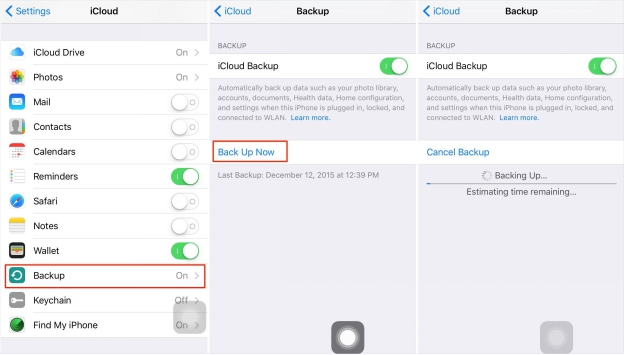
Each Apple ID offers 5GB free storage space, which you can use to store contacts, photos, bookmarks, calendars, and other important documents. Follow these steps to back up your iPhone to Apple ID:
  • Open the Settings app and tap iCloud.
  • On the next screen, tap iCloud Backup to turn on the service.
  • Slightly below iCloud Backup, you should see Back Up Now. Tap it to start backing up your data.
back up iPhone to iCloud
This process requires an internet connection. Thus, ensure you stay connected until the process is complete.

How to Back Up iPhone to Apple ID Automatically?

If you keep on forgetting to back up your iPhone manually, here is how to set it up so that it stores your data in iCloud without you having to do anything.
  • Go to Settings and tap iCloud.
  • On the next screen, tap iCloud Backup to turn it on.
Then once you connect your iPhone to a power source, ensure it is connected to a Wi-Fi network, and lock its screen, the automatic data backup will begin. Furthermore, you have to make sure that you have enough space to store the backed up data. As earlier stated, Apple offers 5GB of iCloud storage space for free. However, you can purchase more of this - plans start at $0.99 for 50GB.

Pros and Cons of Backing Up iPhone to Apple ID

Here are the advantages and disadvantages of using Apple ID to back up your iPhone data.
Pros
  • Easy to Use: Backing up your iPhone with iCloud is quite easy and you can do it in just a few steps.
  • Automatic Backup: Backup takes place at any time provided you satisfy the 3 requirements of automatic backup.
Cons
  • Limited iCloud Free Space: There is a general feeling that Apple should offer more iCloud space for free. In addition, it seems unfair that they provide free space as per Apple ID, instead of increasing it when you purchase more devices. .
  • Requires Internet Connection: To back up iPhone data to Apple ID, your device needs internet connection. Without this, backup is impossible.
Sponsor ads:
Gihosoft iPhone Data Recovery Free
Free iPhone Data Recovery Software for Windows/Mac
Recover up to 12+ types of files, including contacts, SMS, photos, WhatsApp, Viber, notes, etc.
Restore lost data from iOS devices directly or from iTunes and iCloud backup
Recover iPhone data lost due to iOS upgrade/jailbreak, accidental deletion, device lost or broken
Support all the latest iPhone, iPad and iPod Touch
Both Free and Pro version.
If you lost data after you updated to a new iPhone, you can always use Gihosoft iPhone Data Recovery to get the data back from the old iPhone or backup.You may also like: iphonerecovery.com
If you use android phones, please choose Gihosoft Android Data Recovery.
With Gihosoft Android Data Recovery, no longer afraid of data loss!
Gihosoft RePicvid Free Photo Recovery Software provides a free photo recovery software for windows to help users recover the deleted or lost photo for free.
Jihosoft Android Data Recovery: the best Android Data Recovery software for Windows and Mac to recover deleted contacts, messages, photos, videos, WhatsApp and etc from Android devices.Tips:How to transfer messages from iPhone to iPhone

Best iPhone 11 and iPhone 11 Pro Deals

It is rare to find good deals on new iPhones due to the initial rush. With the iPhone 11 and iPhone 11 Pro though, things are a bit differe...