1. How to Back Up iPhone to Apple ID?
Each Apple ID offers 5GB free storage space, which you can use to store contacts, photos, bookmarks, calendars, and other important documents. Follow these steps to back up your iPhone to Apple ID:
- Open the Settings app and tap iCloud.
- On the next screen, tap iCloud Backup to turn on the service.
- Slightly below iCloud Backup, you should see Back Up Now. Tap it to start backing up your data.
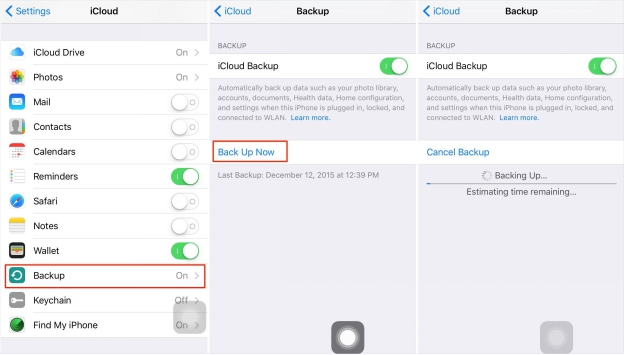
This process requires an internet connection. Thus, ensure you stay connected until the process is complete.
How to Back Up iPhone to Apple ID Automatically?
If you keep on forgetting to back up your iPhone manually, here is how to set it up so that it stores your data in iCloud without you having to do anything.
- Go to Settings and tap iCloud.
- On the next screen, tap iCloud Backup to turn it on.
Then once you connect your iPhone to a power source, ensure it is connected to a Wi-Fi network, and lock its screen, the automatic data backup will begin. Furthermore, you have to make sure that you have enough space to store the backed up data. As earlier stated, Apple offers 5GB of iCloud storage space for free. However, you can purchase more of this - plans start at $0.99 for 50GB.
Pros and Cons of Backing Up iPhone to Apple ID
Here are the advantages and disadvantages of using Apple ID to back up your iPhone data.
Pros
- Easy to Use: Backing up your iPhone with iCloud is quite easy and you can do it in just a few steps.
- Automatic Backup: Backup takes place at any time provided you satisfy the 3 requirements of automatic backup.
Cons
- Limited iCloud Free Space: There is a general feeling that Apple should offer more iCloud space for free. In addition, it seems unfair that they provide free space as per Apple ID, instead of increasing it when you purchase more devices. .
- Requires Internet Connection: To back up iPhone data to Apple ID, your device needs internet connection. Without this, backup is impossible.
Also Read:jihosoft Free iPhone Data Recovery
Sponsor ads:
Gihosoft Free iPhone Data Recovery:https://www.gihosoft.com/iphone-data-recovery-free.html
Gihosoft iPhone Data Recovery Free
Free iPhone Data Recovery Software for Windows/Mac
Recover up to 12+ types of files, including contacts, SMS, photos, WhatsApp, Viber, notes, etc.
Restore lost data from iOS devices directly or from iTunes and iCloud backup
Recover iPhone data lost due to iOS upgrade/jailbreak, accidental deletion, device lost or broken
Support all the latest iPhone, iPad and iPod Touch
Both Free and Pro version.
If you lost data after you updated to a new iPhone, you can always use Gihosoft iPhone Data Recovery to get the data back from the old iPhone or backup.You may also like: iphonerecovery.com
With Gihosoft Android Data Recovery, no longer afraid of data loss!
Must read:Youtube video downloader for pc
Gihosoft RePicvid Free Photo Recovery Software provides a free photo recovery software for windows to help users recover the deleted or lost photo for free.
Jihosoft Android Data Recovery: the best Android Data Recovery software for Windows and Mac to recover deleted contacts, messages, photos, videos, WhatsApp and etc from Android devices.Tips:How to transfer messages from iPhone to iPhone


No comments:
Post a Comment