How to Backup iTunes to External Hard Drive
1. Backup iTunes to External Hard Drive on Windows
This guide is for users with Windows PC. Follow the steps below to backup iTunes to external hard drive.
Step 1: Sign in to your Windows PC and launch the desktop.
Step 2: Find iTunes icon and start the application.
Step 3: Click the “Sign In” button located at the top-left corner.
Step 4: Input your Apple ID credentials and sign in.
Step 2: Find iTunes icon and start the application.
Step 3: Click the “Sign In” button located at the top-left corner.
Step 4: Input your Apple ID credentials and sign in.

Step 5: On the window that comes up after signing in, click Edit menu at the menu bar from the top left corner.
Step 6: Click preferences.
Step 7: Click the Advanced tab on the General Preferences.
Step 6: Click preferences.
Step 7: Click the Advanced tab on the General Preferences.

Step 8: Check the “Copy files to iTunes Media folder when adding to library” checkbox and click “Ok” under the Advanced tab. This setting ensures that a copy of files goes to the iTunes Media folder when adding them to the iTunes library.

Step 9: Click the file menu on the iTunes main window.
Step 10: Click library.
Step 10: Click library.

Step 11: Click the organize Library option.
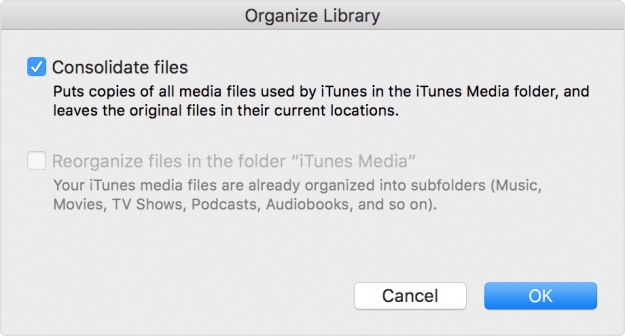
Step 12: Check the “Consolidate files” checkbox and click Ok.
Step 12: Check the “Consolidate files” checkbox and click Ok.

Step 13: Having completed "Step 12," close the iTunes window.
Step 14: Connect your external hard drive to the PC.
Step 15: Go to the iTunes Media folder and locate your iTunes Media folder’s location (refer to step 1-7).
Step 16: When you have located the iTunes Media folder, move a step up to the iTunes Media’s Parent folder.
Step 17: Drag and drop or copy and paste the iTunes from the parent folder to your external hard drive to backup your library.
Step 14: Connect your external hard drive to the PC.
Step 15: Go to the iTunes Media folder and locate your iTunes Media folder’s location (refer to step 1-7).
Step 16: When you have located the iTunes Media folder, move a step up to the iTunes Media’s Parent folder.
Step 17: Drag and drop or copy and paste the iTunes from the parent folder to your external hard drive to backup your library.
2. Backup iTunes to External Hard Drive on Mac
Having used your Mac for some time, you are likely to have several music files on your computer backing up your data is advisable. Below are the steps to take to backup your iTunes to external drive.
Steps 1: Consolidate your library. Gather all scattered music files on your computer. Start iTunes→ Click File→ Select Organize Library from the Library’s dropdown menu→ Check “Consolidate Files” checkbox →Ok.
Step 2: Backup your iTunes library to your external hard drive. Launch iTunes→ Connect external hard drive→ Open Mac’s hard drive→ Click music folder→ Select iTunes, drag it to your external hard drive→ click authenticate if prompted→ Enter your password→ Click Ok.
Sponsor Ads:
Gihosoft iPhone Data Recovery is a professional iPhone Data Recovery software to get back all your lost text message, photo, video, call history, note, contact and more from iPhone/iPad/iPod Touch. It offers a full solution to recover your lost data in different tough situations. Besides recovering data directly from iPhone, iPad and iPod touch, it also allows you to recover data from iCloud and iTunes backup files.


No comments:
Post a Comment