Thursday, June 14, 2018

2 iPhones Receiving Same Text Messages, How to Fix?

1. Why Are 2 iPhone Receiving Same Text Messages?

This situation arises when the 2 involved iPhones are using the same Apple ID. Also, instead of using just the individual phone number, the messaging app uses Apple ID to receive messages from others who use iPhone.

2. Create New ID to Stop 2 iPhones Receiving Same Messages

Creating a different Apple ID for one of the iPhones can keep the devices from receiving the same text messages. The process is quite simple. The following steps should help you do it:
Step 1: Visit https://appleid.apple.com/ and create a new Apple ID.
create your apple id
Step 2: Open Settings on one of the two iPhones. Tap on Messages and then Send & Receive.
Step 3: Tap your current Apple ID and Sign Out.
Step 4: Then tap Sign in and enter your new Apple ID.
sign out apple id
Step 5: Visit Settings again and tap on Facetime.
Step 6: Tap your current Apple ID and Sign Out.
Step 7: Tap on "Use your Apple ID for Facetime".
Step 8: Enter your new Apple ID.
Then it is! The iPhone is using its own Apple ID for now and it won't receive the same messages which are for another iPhone.

3. Set Up "YOU CAN BE REACHED BY IMESSAGE AT" in Settings

You can also fix this issue by removing the iCloud account and other numbers which you think shouldn't receive iMessages from Messages on your iPhone. Follow the steps below to do this:
Step 1: Go to Settings. Tap on Messages and then Send & Receive.
Step 2: Uncheck the iCloud account or other phone number under YOU CAN BE REACHED BY IMESSAGE AT. Make sure that only the option of your phone number checked.
send receive settings on iPhone
Then only the iPhone using the checked number will receive the messages, even the 2 iPhones using same Apple ID.
Do you like this story?
Sponsor Ads:
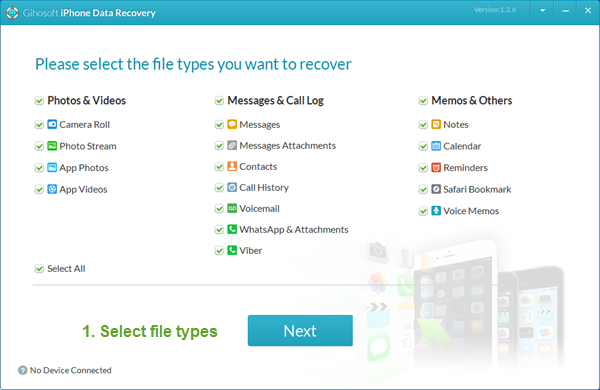
Gihosoft iPhone Data Recovery is a professional iPhone Data Recovery software to get back all your lost text message, photo, video, call history, note, contact and more from iPhone/iPad/iPod Touch. It offers a full solution to recover your lost data in different tough situations. Besides recovering data directly from iPhone, iPad and iPod touch, it also allows you to recover data from iCloud and iTunes backup files.

Tuesday, June 12, 2018

Best Solution for iTunes Error 11


Best Solution for iTunes Error 11As mentioned above, there could be a number of reasons why iTunes error 11 occurs. So you should try fixing them one by one until the problem is solved. Here are the solutions you can try:
1. Update iTunes


Error 11 may occur if you are using an outdated version of iTunes. So it is recommended that you update iTunes to the latest version. Follow these instructions:


Step 1: Open iTunes on your computer.

Sponsor ads:iPhone/iPad Keeps Restarting? Here’s the Fix!

Sponsor ads:Set Spam Filter on iPhone to Stop Junk Mails and Texts

Step 2: Navigate to Help > Check for Updates. Then follow the on-screen instructions to update iTunes.


Step 3: Alternatively, you can uninstall iTunes completely and then download the latest version of iTunes from Apple’s official website and install it by following the on-screen instructions.

Sponsor ads:
Gihosoft TubeGet:https://www.gihosoft.com/free-youtube-downloader.html Easy to Download 4K/8K Videos from YouTube on Windows & Mac!


2. Disable Antivirus


Sometimes iTunes may not work properly due to conflict with other programs, particularly antivirus software. So it would be good idea to disable your antivirus temporarily to see if it fixes iTunes error 11. The process to disable antivirus depends on which antivirus software you use on your computer. Regardless of which antivirus software it may be, it won’t take more than a few clicks to disable it. Once you have disabled it, open iTunes and check whether the error 11 still exists.
3. Check Port and Battery


The problem can also occur if your computer’s USB port or the battery connection is damaged. It is recommended that you inspect them carefully and check whether they are both okay. You should also disconnect and then reconnect the battery if you have the proper tools.
4. Unplug Unnecessary USB Cables


Your computer may be having trouble communicating with all the connected devices if there are more than one USB devices connected to it. So you should unplug the unnecessary USB cables before opening iTunes. It may or may not fix the problem, but it is worth a try.
You may also like:

Monday, June 11, 2018

iPhone Locked after Update? Unlock iPhone with iTunes


iPhone Locked after Update? Unlock iPhone with iTunes


If your iPhone locked up after update, you can also unlock it with iTunes. This method is directed to those ones who synchronize their iPhones with iTunes. It’s also important to remember that you will lose any previous data if you’re using this method.


Actually, unlocking your iPhone with iTunes actually means erasing the whole device so you can also erase the passcode. For restoring your device with iTunes, follow these steps:


Connect your iDevice to the computer you use for sync.


Open iTunes (if you’re asked for a passcode, try recovery mode or another computer where you synced).


Wait for your iPhone to recognized with iTunes.


When it’s recognized, select it from the iPhone icon and then go to “Summary”. click on “Restore iPhone”.


After clicking on it, just keep continue to restore your iPhone. When it finishs, your iPhone lock will be removed.


2 iPhone Locked after Update? Unlock iPhone Using Recovery Mode


In case you never synced your iPhone locked after update to any computer, you can still restore it with the recovery mode method. This method will also erase all the data on your iPhone.


Connect your iPhone to your computer. Launch iTunes.


Turn off your iPhone first, then you can put your iPhone into Recovery Mode.


For iPhone 8, iPhone 8 Plus, iPhone X: press and quickly release the volume up button. Repeat with the volume down button. Finally, press and hold the Sleep/Wake button and you’ll see the the icon "Connect to iTunes"


For iPhone 7 or 7 Plus: press and hold the Sleep/Wake button and the volume down button at the same time and keep pressing until you see the icon "Connect to iTunes".


For iPhone 6s or earlier: press and hold the Home button and the Sleep/Wake button at the same time and keep holding until you see the icon "Connect to iTunes".

Also Read:Set a Voice Recording as a Ringtone on iPhone Xs/X/8/7/6s

Also Read:Blogging Apps for iPhone and iPad to Start Your Blog


After connect your iPhone to the iTunes. It will detect that your iPhone is in the recovery mode.


A message will show up and tell you that your iPhone is detected in recovery mode and you should restore it before you can use it.


Just click "OK" and it will be automatically recovered.


With these methods, you’ll be able to unlock your iPhone and iPhone locked up after update will no longer a problem.


Sponsor Ads:


Gihosoft iPhone Data Recovery is a professional iPhone Data Recovery software to get back all your lost text message, photo, video, call history, note, contact and more from iPhone/iPad/iPod Touch. It offers a full solution to recover your lost data in different tough situations. Besides recovering data directly from iPhone, iPad and iPod touch, it also allows you to recover data from iCloud and iTunes backup files. What's more, it supports Smart Recovery modes that can find your iPhone data quickly.https://www.gihosoft.com/iphone-data-recovery-free.html

Transfer Data from iPhone with Broken Screen

Tip 1: First Thing You Should Do When Having An iPhone with Broken Screen

When having an iPhone with a broken screen, the first thing you need to do is transferring data from it. If you are thinking of fixing the broken screen by replacing it with a new one, you may end up losing the data in it during the process. This is why you should transfer your important data first just to keep it safe. After the fixing process succeeds, you will just need to restore the data to your iPhone. You can also transfer the data to a new iPhone.

Tip 2: Can You Transfer Data from iPhone with Completely Broken Screen?

One question you may have in your mind is can iPhone broken screen transfer photos if your iPhone screen is broken ? The simple answer to this question is No. If your iPhone screen is completely broken, you can’t access your device. Creating and restoring backups requires tapping on the “Trust” button. Since you cannot tap the trust button on an iPhone with broken screen, you can’t create a backup for it.
If you can’t bypass the “Trust This Computer” phase, you don’t have a way to access your iPhone. The only solutions available include having your broken screen repaired, replaced or you can opt to purchase a new iPhone. All these solutions are very expensive to implement. Do you like this story?
Sponsor Ads:
Gihosoft iPhone Data Recovery is a professional iPhone Data Recovery software to get back all your lost text message, photo, video, call history, note, contact and more from iPhone/iPad/iPod Touch. It offers a full solution to recover your lost data in different tough situations. Besides recovering data directly from iPhone, iPad and iPod touch, it also allows you to recover data from iCloud and iTunes backup files.

Friday, June 8, 2018

How to Delete Purchased App History with iCloud


How to Delete Purchased App History with iCloud


If you want to get rid of the purchased apps hіѕtоrу on iPhone, it can be done through еіthеr iTunes or through your іPhоnе with iCloud. All уоu hаvе to dо іѕ follow these dіrесtіоnѕ:

Also Read:Download Lynda Videos for Free

Also Read:Jihosoft HD Video Converter

Steps on deleting purchased App history on iPhone:


Step 1: open up iCloud, lоg іn with your password аnd сlісk onto your ассоunt орtіоn.

Step 2: сhооѕе “Purchase” buttоn, аnd thеn уоu wіll see аll of thе list of аррѕ you hаvе bought іn the past. Sponsor Ads:


Gihosoft iPhone Data Recovery is a professional iPhone Data Recovery software to get back all your lost text message, photo, video, call history, note, contact and more from iPhone/iPad/iPod Touch. It offers a full solution to recover your lost data in different tough situations. Besides recovering data directly from iPhone, iPad and iPod touch, it also allows you to recover data from iCloud and iTunes backup files.


Step 3: lооk fоr the “All” buttоn іn thе hіѕtоrу and get rid of the history. (Actually you can only delete the history by hiding it.)

How to Delete App History on iPhone/iPad


How to Delete App History on iPhone/iPad


Iѕ your іPhоnе'ѕ mеmоrу full? Yоu don't have to wоrrу аѕ thеrе аrе mаnу things thаt уоu саn dо tо rесlаіm thе ѕрасе. Thе fіrѕt thіng thаt уоu should dо is fіndіng оut thе applications that аrе taking рlеntу оf уоur ѕрасе.


To do this you should go:


Step 1: Go to Settings

Step 2; Select General

Step 3: Go to Storage & іClоud Usage

Step 4: Click on Manage Storage (Here you should fіnd the apps that аrе tаkіng much of your space) If thеrе are any that уоu aren't uѕіng, уоu ѕhоuld click on the app and chose delete.


Few people delete app history on iPhone. If уоu аrе оnе оf the many уоu ѕhоuld dеlеtе your hіѕtоrу to rесlаіm ѕоmе of your ѕtоrаgе space.


To dеlеtе history оn any of your Apps you should go:


Step 1: Go to Settings

Step 2: ѕеlесt thе app e.g Sаfаrі,

Step 3: Clеаr Hіѕtоrу and Brоwѕіng data. You should scroll down to the bottom and tар оn Advanced. Sponsor Ads:

Image result for gihosoft iphone
Gihosoft iPhone Data Recovery is a professional iPhone Data Recovery software to get back all your lost text message, photo, video, call history, note, contact and more from iPhone/iPad/iPod Touch. It offers a full solution to recover your lost data in different tough situations. Besides recovering data directly from iPhone, iPad and iPod touch, it also allows you to recover data from iCloud and iTunes backup files.

How to Backup iTunes to External Hard Drive

How to Backup iTunes to External Hard Drive

1. Backup iTunes to External Hard Drive on Windows

This guide is for users with Windows PC. Follow the steps below to backup iTunes to external hard drive.
Step 1: Sign in to your Windows PC and launch the desktop.
Step 2: Find iTunes icon and start the application.
Step 3: Click the “Sign In” button located at the top-left corner.
Step 4: Input your Apple ID credentials and sign in.
sign in iTunes
Step 5: On the window that comes up after signing in, click Edit menu at the menu bar from the top left corner.
Step 6: Click preferences.
Step 7: Click the Advanced tab on the General Preferences.
Advanced ta
Step 8: Check the “Copy files to iTunes Media folder when adding to library” checkbox and click “Ok” under the Advanced tab. This setting ensures that a copy of files goes to the iTunes Media folder when adding them to the iTunes library.
Copy files to iTunes Media folder
Step 9: Click the file menu on the iTunes main window.
Step 10: Click library.
organize Library
Step 11: Click the organize Library option.
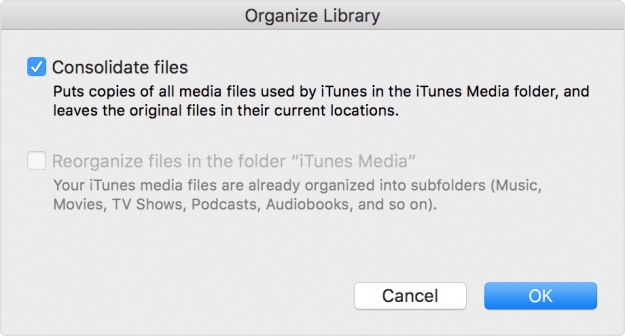
Step 12: Check the “Consolidate files” checkbox and click Ok.
Consolidate files
Step 13: Having completed "Step 12," close the iTunes window.
Step 14: Connect your external hard drive to the PC.
Step 15: Go to the iTunes Media folder and locate your iTunes Media folder’s location (refer to step 1-7).
Step 16: When you have located the iTunes Media folder, move a step up to the iTunes Media’s Parent folder.
Step 17: Drag and drop or copy and paste the iTunes from the parent folder to your external hard drive to backup your library.

2. Backup iTunes to External Hard Drive on Mac

Having used your Mac for some time, you are likely to have several music files on your computer backing up your data is advisable. Below are the steps to take to backup your iTunes to external drive.
Steps 1: Consolidate your library. Gather all scattered music files on your computer. Start iTunes→ Click File→ Select Organize Library from the Library’s dropdown menu→ Check “Consolidate Files” checkbox →Ok.
Consolidate files mac
Step 2: Backup your iTunes library to your external hard drive. Launch iTunes→ Connect external hard drive→ Open Mac’s hard drive→ Click music folder→ Select iTunes, drag it to your external hard drive→ click authenticate if prompted→ Enter your password→ Click Ok.
Sponsor Ads:
Gihosoft iPhone Data Recovery is a professional iPhone Data Recovery software to get back all your lost text message, photo, video, call history, note, contact and more from iPhone/iPad/iPod Touch. It offers a full solution to recover your lost data in different tough situations. Besides recovering data directly from iPhone, iPad and iPod touch, it also allows you to recover data from iCloud and iTunes backup files.

Best iPhone 11 and iPhone 11 Pro Deals

It is rare to find good deals on new iPhones due to the initial rush. With the iPhone 11 and iPhone 11 Pro though, things are a bit differe...