Thursday, August 30, 2018

5 Tips to Fix “iPhone Won’t Stay Connected to WiFi” 2019


5 Tips to Fix “iPhone Won’t Stay Connected to WiFi”

How to Fix “iPhone Won’t Stay Connected to WiFi”


1. Try Another Device

Probably you've tried this as the beginning step when your iPhone won't stay connected to WiFi. But if you haven't, we recommend you to try connecting the WiFi with any other device. If the other phone is also popping up the same trouble, then you should restart the router of your home. Alternatively, simply switch to another WiFi connection. In case, the other device shows no such problem and connecting successfully, then your iPhone has to go under the treatment. Look for the next tip to get the problem solved.
2. Disable WiFi and then Restart Your iPhone

You can, for no other reason, turn off the WiFi and give your iPhone a restart phase. Disabling the connection for a while and keeping the device stable will likely to make the troubling functions settled and turn your device to act normal. Also, when you restart your device, make sure to turn the WiFi back on. Now check if the problem still arises.


3. Reset Network Settings

If the situation is still same and iPhone won't stay connected to WiFi for a long time, try resetting network settings now. As the name hints itself, it will take your all network settings to a fresh start. Please note that this method will delete your entire networks and passwords. The steps are as goes:


Begin with opening 'Settings' and then tap on 'General'.


Go to 'Reset' and complete the process by hitting on the 'Reset Network Settings'.


When you do this, you may be asked to enter the passcode. Do it and confirm resetting.


4. Turn off Bluetooth

Another thing you need to try if your iPhone won't stay connected to WiFi is disabling the Bluetooth. This is because the Bluetooth is able to cause some interference and inconvenience with the connection between your WiFi and device. Therefore, to prevent this situation, go to 'Settings' and tap 'Bluetooth' and turn it off. Now use your WiFi and check if the device keeps connected to it or not.


5. Restore iPhone to Factory Settings

Here is the last fix to try when your iPhone won't stay connected to WiFi. There could be some unknown reason with the other apps or data on your device that is causing iPhone not keeping connected to WiFi, so you need to restore your iPhone to factory settings. This process will take help of iTunes. All the data on your device will be erased. The steps are given just below.


As the first move, connect your device to the PC and open iTunes in it.


Upon successful connection of iPhone and PC, you need to click on the device icon at the top followed by 'Summary' tab.


Now, choose the option 'Restore iPhone' and confirm the process.


Gihosoft Android data recovery Free is a super awesome software specialized in Android file recovery. With this program, you are able to recover deleted photos, music, videos, messages, contacts, call logs, WhatsApp messages, Viber chat history and more from Samsung, Huawei, LG, HTC, Motorola, Google, Oneplus, Sony, Lenovo, ZTE and other Android devices directly. Meanwhile, this Android data recovery software is available for both Windows and Mac platforms.For now, check:Free iTunes/iPhone Backup Extractor for iPhone, iPad

Jihosoft iTunes Backup Extractor free is a powerful tool to recover and extract important data from iPhone, iPad & iPod touch backup on Windows or Mac.

You may also like:Gihosoft Mobile Transfer: 1 Click Data Transfer from Phone to Phone

If you can’t sync with iTunes and want to rescue data from a disable iPhone, you could try Gihosoft iPhone Data Recovery. Also feel free to ask questions on the iDevice is disabled error in the comments section below.

Friday, August 10, 2018

How to Fix iPhone Cannot Connect to Bluetooth


How to Fix iPhone Cannot Connect to Bluetooth
1. Check the Basics for Bluetooth Connection


There are basic things that you need to check first when you want to know if your Bluetooth is connected to your iPhone.


First, check if your iPhone’s Bluetooth is turned on by swiping up from the bottom of your iPhone screen then opening the Control center. Click on the Bluetooth icon. Make sure it is blue meaning it is on but if it is grey it is off.


Secondly, keep your Bluetooth device closest to your iPhone as the proximity and range of Bluetooth devices is around 30 feet for the devices to be able to connect properly. If the devices are beyond that range you will most likely have iPhone cannot connect to Bluetooth problems.
2. Check Where the Problem Lies


When you find that your iPhone cannot connect to Bluetooth it could either be because there is something wrong with your iPhone or your Bluetooth device. It is important to know which device has a problem so that it can be fixed. You can take another Bluetooth device and try connecting to your devices to see which one successfully connects with your iPhone.


If your iPhone cannot connect to Bluetooth devices this means your iPhone has a problem, but if one of the Bluetooth devices connects to your iPhone, this means one of the Bluetooth devices has a problem.
3. Turn Off and Turn On Bluetooth


By turning your Bluetooth off and on again you can fix some minor software glitches that may prevent your iPhone and Bluetooth devices from connecting properly. There are three ways of doing this.


Going to the Settings app and turning Bluetooth off.


Go to your iPhone and open Settings.


Click on the Bluetooth icon.


Turn off the Bluetooth switch. It will turn grey when off.


Click on the Bluetooth switch again to turn it on. It will turn green.


Go to the Control center and turn Bluetooth off.


To open the Control center swipe up from the bottom of your iPhone screen.


Click on the Bluetooth icon and turn it off. The icon will turn black inside a grey circle.


Click again on the Bluetooth icon and turn it on. The icon will be white inside a blue circle.


Using Siri turn Bluetooth off.


Press and hold the Home button to turn on Siri on your iPhone or say, “Hey Siri”.


Turn off Bluetooth by saying, “Turn off Bluetooth”.


Turn on Bluetooth again by saying, “Turn on Bluetooth”.


After you have turned Bluetooth off and on again, try pairing your iPhone and Bluetooth device to find out if the problem has been fixed.
4. Hard Reset iPhone


You can try hard resetting to flash out any hard bits that are stuck in your device. Follow these steps:


To open the Control center on your iPhone swipe up from the bottom of your device.


Click on the Bluetooth icon to turn it off.


If you are using iPhone 7 and newer, press and hold the Sleep/Wake and Volume down buttons simultaneously. On iPhone 6s and older, press and hold the Sleep/Wake and Home buttons simultaneously.


Keep holding till you see the Apple logo appear then release the buttons.


Wait for your iPhone to reboot.


Access the Control center by swiping up from your iPhone’s screen.


Click on the Bluetooth icon to turn it back on. Then try connecting your iPhone and Bluetooth device.


5. Forget the Device


Forgetting the Bluetooth device means it will be like the Bluetooth device was never connected to your iPhone so when you connect the devices it will be doing it for the first time. These are the steps to follow:


Go to your iPhone Settings.


Click on the Bluetooth icon.


Click on the (i) symbol next to the Bluetooth device you want to forget.


Click on Forget this device then click on it again when prompted.


The forgotten device will not appear in My device Settings or in Bluetooth. Put the Bluetooth device on pairing mode to reconnect it with your iPhone.


6. Reset Network Settings


This is a way of fixing more complicated software problems by erasing all data settings from Wi-Fi and VPN, Bluetooth devices and iPhone so that your iPhone and Bluetooth device can connect from clean settings. Make sure you can remember all your Wi-Fi passwords before resetting the network settings as you will use them later.


Open your iPhone Settings then click on the General tab.


Scroll down and click on the Reset button.


Click on Reset network settings.


If prompted enter the passcode.


After the reset is done your iPhone will restart itself. Try pairing your Bluetooth device with your iPhone again.


If you lost videos from iOS Camerall Roll which are nowhere to download again, you can use Gihosoft iPhone Data Recovery to get back deleted videos from iOS device including iPhone, iPad and iPod Touch.

Jihosoft Android Data Recovery: the best Android Data Recovery software for Windows and Mac to recover deleted contacts, messages, photos, videos, WhatsApp and etc from Android devices.

Any app suggestions or topic recommendations are appreciated in the comments down below.


Wednesday, August 1, 2018

How to Convert HEIC Photos to JPEG Format


How to Convert HEIC Photos to JPEG Format
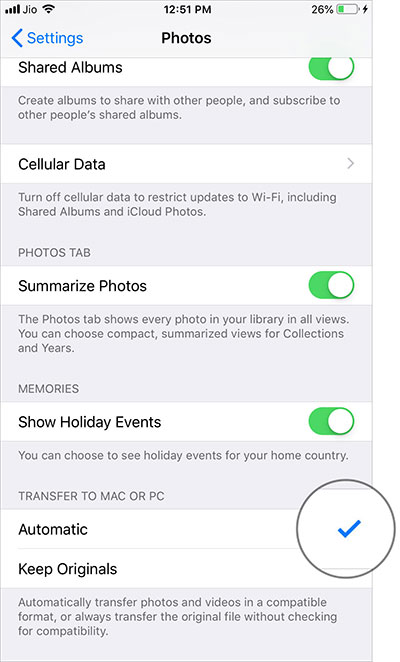
Automatically Convert HEIF Images into JPG When Transfering to Mac or PC

Both iOS 11 and 12 automatically convert HEIC to JPG when transferring the images to Mac or PC. So, if you ever faced the incompatibility hurdle, take advantage of this built-in option.

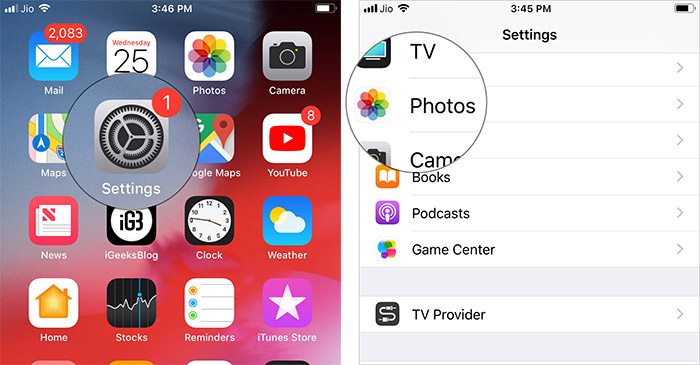
Step #1. Launch the Settings app on your iOS device → Photos.


How to Convert HEIC Images into JPEG Right on the iPhone and iPad
What if you don’t take the root mentioned above and wish to get it done right on your iOS device? It turns out, there is a trick to get it done!

Step #1. Once you have captured the HEIF image, open Photos app on your iOS device and head over to the pic.

Step #2. Now, tap on Edit and then use any tool like cropping, rotating or filter.


Tap on Edit and then use any tool like cropping, rotating or filter in iPhone Photos App


Step #3. Next, tap on Done to confirm.

Tap on Done to Convert HEIC Image into JPEG on iPhone

That’s it!

Check out the image has been converted to JPG. You can now use it with the software that doesn’t support HEIC.

Sponsor Ads:

Gihosoft Free iPhone Data Recovery is a professional iPhone Data Recovery software to get back all your lost text message, photo, video, call history, note, contact and more from iPhone/iPad/iPod Touch. It offers a full solution to recover your lost data in different tough situations. Besides recovering data directly from iPhone, iPad and iPod touch, it also allows you to recover data from iCloud and iTunes backup files.

iPhone backup unlocker:Recover iTunes Backup Password.

iPhone backup extractor free:The best iPhone Backup Extractor software to extract photos, text messages, contacts, voice memos, note, WhatsApp, Viber and etc from iPhone/iPad backup.

Best iPhone 11 and iPhone 11 Pro Deals

It is rare to find good deals on new iPhones due to the initial rush. With the iPhone 11 and iPhone 11 Pro though, things are a bit differe...