Sunday, December 23, 2018

How to Update iOS on iPad 2019

How to Update iOS on iPad


Method 1: Update iPad in Settings

“How do I update my iPad” a very simple question asked by new iOS users, but it is not actually difficult, it’s just different. The official ways include 2 ways to update the iOS; the first one is a wireless method or OTA method that uses the Wi-Fi connection and for that, you have to access the device from the Settings. The second one is via iTunes app.

Here’ how to update iOS on iPad from Settings:

Step 1: First of all, make a backup of the device as an iOS update will erase everything then go to Settings on your iPad.

Step 2: Then, go to “General” and tap on “Software Update”.


Step 3: If an update is available then you will get “Download and install’ option on your screen.


Step 4: You will be asked for your Passcode, provide it and just agree to the “Terms and Conditions”.

Step 5: You need to tap on “Agree” again to confirm the command.

After that, the download will begin shortly if not immediately. After the update is completely downloaded, it will get installed on the background of your iPad. Make sure the Wi-Fi network is strong and steady or the software update may take hours or even fail.
Method 2: Update iPad using iTunes

You can also use iTunes to update the iOS of your iPad. Well, the wireless method is the easiest one but if you are short on space on your iPad or just having trouble with the other ways then you can depend on iTunes to update.

But to use this method you also need to have access to a Mac or a Windows PC. You need to connect the device to the computer for the update. Here’ take a look:

Step 1: Launch the iTunes app on your computer.

Step 2: Connect the iPad to that computer with a USB cable, the device will be detected by iTunes automatically.

Step 3: In the iTunes panel, click on the “Device” icon, then go to “Summary” on the left side and click on “Check for Update”.

Step 4: Next click “Download and Update”. You also have to agree to the “Terms & Conditions”. If asked you have to enter the passcode also.


This is another official way for iPad software update. It is simple but you will need access to a computer to do it.

Sponsor ads:

Gihosoft Free iPhone Data Recovery:https://www.gihosoft.com/iphone-data-recovery-free.html

Gihosoft iPhone Data Recovery Free

Free iPhone Data Recovery Software for Windows/Mac

Recover up to 12+ types of files, including contacts, SMS, photos, WhatsApp, Viber, notes, etc.

Restore lost data from iOS devices directly or from iTunes and iCloud backup

Recover iPhone data lost due to iOS upgrade/jailbreak, accidental deletion, device lost or broken

Support all the latest iPhone, iPad and iPod Touch

Both Free and Pro version.

If you lost data after you updated to a new iPhone, you can always use Gihosoft iPhone Data Recovery to get the data back from the old iPhone or backup.You may also like: iphonerecovery.com

If you use android phones, please choose Gihosoft Android Data Recovery.

With Gihosoft Android Data Recovery, no longer afraid of data loss!

Must read:Youtube video downloader for pc

Gihosoft RePicvid Free Photo Recovery Software provides a free photo recovery software for windows to help users recover the deleted or lost photo for free.

Jihosoft Android Data Recovery: the best Android Data Recovery software for Windows and Mac to recover deleted contacts, messages, photos, videos, WhatsApp and etc from Android devices.

jihosoft Free iPhone Data Recovery
Worth reading:Best youtube downloader online download youtube 1080p

Saturday, December 22, 2018

2019 How to go back to Substitute from Cydia Substrate v0.9.700


WHY YOU SHOULD SWITCH FROM SUBSTRATE TO SUBSTITUTE

According to Saurik, Cydia Substrate v0.9.700 is the most stable build of Substrate till date. In spite of that, the latest build is not fully stable on devices having an A7 or A8 processor.

Users who own older models have complained about frequent freezes, respring loops, and reboots after switching to the latest build of Substrate.

Several users who own an iPhone X, a device that’s supposed to be fully compatible with the latest update, have experienced similar glitches as well.

View image on Twitter


Yalu Jailbreak@Yalujb

Saurik has pushed Cydia Substrate v0.9.700 update - the most well-tested update that supports iOS 3.0-11.3.1 (unc0ver). You can download it from Saurik's beta repo - http://apt.saurik.com/beta/substrate11/ …. #RETWEET

110

5:30 PM - Dec 17, 2018

35 people are talking about this

Twitter Ads info and privacy

Thankfully, the developer team of unc0ver jailbreak is aware of the issue and is diligently working on a patch.

You can now either wait for Saurik to push a fix or you can switch to the good old Substitute for the time being.
HOW TO GO BACK TO SUBSTITUTE FROM CYDIA SUBSTRATE
METHOD 1 (RECOMMENDED)

This method involves putting your device in no-Substrate jailbreak mode. Disabling Substrate will automatically enable Substitute.


Press and hold the “volume up” button.


Open the unc0ver jailbreak application from your home screen.


Tap Jailbreak to put your device in the jailbroken state. Remember, you must keep the “volume up” button pressed at all times.


Substitute will now get enabled.
METHOD 2

If the aforementioned method doesn’t work for you, you can try the second method given below. It involves a few more steps but the end result is the same.


Restart your Apple device to put it in jailbreak mode.


Run unc0ver jailbreak app with the Load Tweaks option toggled off.


Open Cydia and downgrade Cydia Substrate to an older version.


Install the Substitute package. Doing so should automatically uninstall Substrate. However, if Cydia Substrate is still present, you must delete it manually.


Restart your device and put it in the jailbroken state again.

That’s all there’s to it. If, however, you continue experiencing issues with Substitute, try installing the ByeVSD Cydia tweak.Sponsor ads:

Gihosoft Free iPhone Data Recovery:https://www.gihosoft.com/iphone-data-recovery-free.html

Gihosoft iPhone Data Recovery Free

Free iPhone Data Recovery Software for Windows/Mac

Recover up to 12+ types of files, including contacts, SMS, photos, WhatsApp, Viber, notes, etc.

Restore lost data from iOS devices directly or from iTunes and iCloud backup

Recover iPhone data lost due to iOS upgrade/jailbreak, accidental deletion, device lost or broken

Support all the latest iPhone, iPad and iPod Touch

Both Free and Pro version.

If you lost data after you updated to a new iPhone, you can always use Gihosoft iPhone Data Recovery to get the data back from the old iPhone or backup.You may also like: iphonerecovery.com

If you use android phones, please choose Gihosoft Android Data Recovery.

With Gihosoft Android Data Recovery, no longer afraid of data loss!

Must read:Youtube video downloader for pc

Gihosoft RePicvid Free Photo Recovery Software provides a free photo recovery software for windows to help users recover the deleted or lost photo for free.

Jihosoft Android Data Recovery: the best Android Data Recovery software for Windows and Mac to recover deleted contacts, messages, photos, videos, WhatsApp and etc from Android devices.

jihosoft Free iPhone Data Recovery


Worth reading:Best youtube downloader online download youtube 1080p


Monday, November 26, 2018

How to Fix iPhone Notes Disappeared 2019


Option 1. Find Disappeared iPhone Notes via Email Settings

You can recover the missing notes via email settings. I know that it sounds a little strange but trust me, this works. A lot of times, users unknowingly sync their notes off with their existing Gmail accounts and when the Notes toggle in settings is switched OFF, the notes disappear.

Step 1. Go to Setting > Accounts & Passwords.

Step 2. Here, tap on every email account and make sure that "Notes" is turned on for each. If you had removed an email account from your iPhone recently, add it again and turn on "Notes" after set up.

Step 3. Now go back to the Notes app and tap on the yellow arrow to see if they are back.


Option 2. Recover Disappeared Notes via iTunes Backup

If you're like me and you often back up you iPhone notes to your iTunes then there is always a very easy way to recover those notes from iTunes. Just follow the instructions carefully.

Step 1. Open your iTune sand click the iPhone icon.

Step 2. Select the iTunes backup file that contains the deleted Notes and click "Restore Backup".

Step 3. The only problem with using this method is that all the current media files that were not included in the backup will be overwritten when you restore the backup and probably lost permanently.


Option 3. Recover Disappeared Notes via iCloud Backup

If you have already toggled ON of iCloud backup option from the iCloud settings, then iCloud automatically creates a backup each day. However, there are certain requirements and steps that you need to follow according to Apple Inc. Follow the steps carefully:

Step 1. Make sure you have made a recent backup to restore from. Go to Settings > iCloud > Storage > Manage Storage, then choose a device listed under Backups to see the date and size of its latest backup.

Step 2. Then go to Settings > General > Reset and choose "Erase all content and settings".

Step 3. From the Apps & Data screen, choose Restore from iCloud Backup, then sign in to iCloud.

Step 4. Choose the iCloud backup file that contains the missing notes.

Step 5. Like restoring from an iTunes backup file, this method may also result in permanent data loss.

Know more about restoring your iOS device from a backup>>.


Option 4. Find Notes in "Recently Deleted" in iCloud.com

If you haven't found your Notes yet, you can try looking for the disappeared notes from the Settings app. Here's how to do it.

Step 1. Log in to iCloud.com and choose the notes option.

Step 2. Choose "Recently Deleted" folder and search the notes you want. Notes in this folder are permanently deleted after 30 days. If you cannot see the Recently Deleted folder on the list, that means you do not have any deleted notes.

Step 3. Click "Recover" to recover the deleted note. You can find the recovered notes in "note" folder.


Reviews of the 4 Options


D-Back

Email Setting

iTunes

iCloud

iCloud.com


Selectively recover notes


Fully recover notes


Recover without backups


Recover from iTunes backup


Recover from iCloud backup


Recover notes without restoring


Will not affect current data


View all iTunes backup content


View all iCloud backup content


Free

no, but with free trial version


Conclusion

Sponsor ads:

Gihosoft Free iPhone Data Recovery:https://www.gihosoft.com/iphone-data-recovery-free.html

Gihosoft iPhone Data Recovery Free

Free iPhone Data Recovery Software for Windows/Mac

Recover up to 12+ types of files, including contacts, SMS, photos, WhatsApp, Viber, notes, etc.

Restore lost data from iOS devices directly or from iTunes and iCloud backup

Recover iPhone data lost due to iOS upgrade/jailbreak, accidental deletion, device lost or broken

Support all the latest iPhone, iPad and iPod Touch

Both Free and Pro version.

If you lost data after you updated to a new iPhone, you can always use Gihosoft iPhone Data Recovery to get the data back from the old iPhone or backup.You may also like: iphonerecovery.com

If you use android phones, please choose Gihosoft Android Data Recovery.

With Gihosoft Android Data Recovery, no longer afraid of data loss!


Worth reading:Best youtube downloader online download youtube 1080p


Wednesday, October 3, 2018

How to Remove iTunes Duplicates 2019

How to Remove iTunes Duplicates 2019

You can remove duplicate songs by using iTunes itself. iTunes 12 and later versions have built-in feature called ‘Find Duplicates’ that you will need to use.

Follow these steps to remove duplicate songs from iTunes:

Step 1: First, make sure you have the latest version of iTunes installed on your computer.

Step 2: Launch iTunes and click on View tab.

Step 3: Now choose Show Duplicate Items option from the list.

Step 4: Once you click on that option, iTunes will start scanning for duplicate tracks and then automatically filter the content and display duplicates in the library.

Step 5: From the list shown, you can select the tracks and easily delete them.

Step 6: If you have remix tracks (in addition to the original versions) in your iTunes library, then there is a chance that iTunes will filter it as duplicates. Therefore, it is recommended that you view the list of duplicates carefully and make sure you don’t delete those remixes.

Note

This method may not work well if you have tracks and albums in your library that are named improperly. The problem may also occur if you have non-purchased music in your library.
How to Prevent iTunes from Importing Duplicated Music
Sponsor ads:7 Best iPhone Photo Editor Apps To Achieve Filter and Psychedelic Look
Although you can remove iTunes duplicates by using the built-in ‘Find Duplicates’ feature of iTunes, it is easier to simply prevent iTunes from importing duplicated music in the first place.

Follow these steps to remove duplicate songs from iTunes:

Step 1: Launch iTunes and navigate to Preferences>Advanced.

Step 2: There, you will see two options ‘Copy files to iTunes Media folder when adding to library’ and ‘Keep iTunes Media folder organized’. Check both of these options.

Step 3: Now save your settings by clicking on the Reset Warning option.


The import of duplicated music will be disabled once you have performed the above mentioned steps. Then, you won’t face the problem to remove duplicates in iTunes.

Sponsor ads:6 Best Running Apps For iPhone & Apple Watch to Keep Your Fitness

Sponsor ads:How to Use Motorola Migrate for Transferring Data

Sponsor ads:How to Fix Insufficient Storage Available Problem on Android
Gihosoft Photo Eraser Erase unwanted objects and perfect your amazing photos!

If you lost data after you updated to a new iPhone, you can always use Gihosoft iPhone Data Recovery to get the data back from the old iPhone or backup.

Jihosoft Photo Eraser

Free iTunes/iPhone Backup Extractor for iPhone, iPad

iPhone Backup Extractor - Extract Data from iPhone Backup

Jihosoft Android Data Recovery: the best Android Data Recovery software for Windows and Mac to recover deleted contacts, messages, photos, videos, WhatsApp and etc from Android devices.

Gihosoft Android data recovery Free is a super awesome software specialized in Android file recovery. With this program, you are able to recover deleted photos, music, videos, messages, contacts, call logs, WhatsApp messages, Viber chat history and more from Samsung, Huawei, LG, HTC, Motorola, Google, Oneplus, Sony, Lenovo, ZTE and other Android devices directly.
You may also like:online youtube downloader

Monday, September 3, 2018

How to Transfer Music from iPhone to Computer

How to Transfer Music from iPhone to Computer via iTunes?

To transfer songs from iPhone to computer, you can turn to an official tool called iTunes as well. This program is provided to help users sync or backup their iPhone, iPad or iPod data easily.

Pros

- The tool is 100% safe;

- The operation is easy.

Cons:

- It only allows you to download the purchased songs to computer.


The following is the tutorial about how to transfer songs from iPhone to PC via iTunes:

Step 1. Launch the latest iTunes on your computer and then connect your iPhone devices to computer or Mac via its USB cable.

Step 2. Tap on the "File" option at the upper left corner of iTunes and continue to choose "Devices". Next, you need to select the option "Transfer Purchases" from your iPhone name.


Step 3. Now you need to wait till the transferring process ends. Then you can click "Recently Added" at the left side of iTunes and elect the purchased music that you want to save. Finally, you should click "Download" to start downloading the selected songs to your computer.
Other Ways to Transfer Songs from iPhone to PC

Using iPhone transfer software and iTunes are two common ways to transfer iPhone music to computer. But except for that, you are able to user other ways to sync the data as well. For instance, you can make use of cloud storage service or email to complete the transfer easily.

- Cloud storage service: Users just need to install the application like Dropbox, Google Drive, etc. on your iPhone and then sync the wanted files to the service. After that, you can login to the cloud on your computer and then download them to the desktop with ease.

- Email: You can send the wanted songs to an email by using the application Song2Email and then download the received folder to your computer.

Notice: The application Song2Email is not free. You need to pay for the service if you want to email the music with the app.
How to Transfer Music from Computer to iPhone X/8/7/6S/6

After backing up music to local disk by following the steps above, you'll find transferring music from computer to iPhone is quite simple here. If you haven't done these steps before, it also doesn't matter. Just go with the below steps to reach your goal with iTunes. Or you can read the page of how to transfer music to iPhone X/8/8 Plus to find the complete guide of importing music.

Step 1. Please be sure all your needed music have been saved on the Windows or Mac computer. If the file is saved in your iPhone or iPod device, you can follow the steps in Part 1 or Part 2 to export them to computer easily.

Step 2. Next, you need to sync all your beloved songs to iTunes and then connect your iPhone device to the computer and make sure it is recognized by the iTunes.

Step 3. Finally, click the device under that tab of "DEVICES" in the left panel. And then you can select "Music" option in the right window. Here, you can see a category of "Sync Music". Just check it and select "Entire music library" or "Selected playlists, artists and genres" according to your own needs. After that, you can click "Apply" button to save all the settings.


Final Thought

That's all for how to transfer music from iPhone to computer. Just choose one software to transfer the wanted songs for backup so that you can get them back while accidentally losing them. Although there are other tools available for you to retrieve the iPhone music without backup, you are unable to recover all kinds of data with these tools. So to better protect your phone data, you'd better make a backup beforehand.

You may also like:Gihosoft Mobile Transfer: 1 Click Data Transfer from Phone to Phone

Gihosoft Android data recovery Free is a super awesome software specialized in Android file recovery. With this program, you are able to recover deleted photos, music, videos, messages, contacts, call logs, WhatsApp messages, Viber chat history and more from Samsung, Huawei, LG, HTC, Motorola, Google, Oneplus, Sony, Lenovo, ZTE and other Android devices directly. Meanwhile, this Android data recovery software is available for both Windows and Mac platforms.For now, check:Free iTunes/iPhone Backup Extractor for iPhone, iPad

Jihosoft iTunes Backup Extractor free is a powerful tool to recover and extract important data from iPhone, iPad & iPod touch backup on Windows or Mac.

If you can’t sync with iTunes and want to rescue data from a disable iPhone, you could try Gihosoft iPhone Data Recovery. Also feel free to ask questions on the iDevice is disabled error in the comments section below.

Thursday, August 30, 2018

5 Tips to Fix “iPhone Won’t Stay Connected to WiFi” 2019


5 Tips to Fix “iPhone Won’t Stay Connected to WiFi”

How to Fix “iPhone Won’t Stay Connected to WiFi”


1. Try Another Device

Probably you've tried this as the beginning step when your iPhone won't stay connected to WiFi. But if you haven't, we recommend you to try connecting the WiFi with any other device. If the other phone is also popping up the same trouble, then you should restart the router of your home. Alternatively, simply switch to another WiFi connection. In case, the other device shows no such problem and connecting successfully, then your iPhone has to go under the treatment. Look for the next tip to get the problem solved.
2. Disable WiFi and then Restart Your iPhone

You can, for no other reason, turn off the WiFi and give your iPhone a restart phase. Disabling the connection for a while and keeping the device stable will likely to make the troubling functions settled and turn your device to act normal. Also, when you restart your device, make sure to turn the WiFi back on. Now check if the problem still arises.


3. Reset Network Settings

If the situation is still same and iPhone won't stay connected to WiFi for a long time, try resetting network settings now. As the name hints itself, it will take your all network settings to a fresh start. Please note that this method will delete your entire networks and passwords. The steps are as goes:


Begin with opening 'Settings' and then tap on 'General'.


Go to 'Reset' and complete the process by hitting on the 'Reset Network Settings'.


When you do this, you may be asked to enter the passcode. Do it and confirm resetting.


4. Turn off Bluetooth

Another thing you need to try if your iPhone won't stay connected to WiFi is disabling the Bluetooth. This is because the Bluetooth is able to cause some interference and inconvenience with the connection between your WiFi and device. Therefore, to prevent this situation, go to 'Settings' and tap 'Bluetooth' and turn it off. Now use your WiFi and check if the device keeps connected to it or not.


5. Restore iPhone to Factory Settings

Here is the last fix to try when your iPhone won't stay connected to WiFi. There could be some unknown reason with the other apps or data on your device that is causing iPhone not keeping connected to WiFi, so you need to restore your iPhone to factory settings. This process will take help of iTunes. All the data on your device will be erased. The steps are given just below.


As the first move, connect your device to the PC and open iTunes in it.


Upon successful connection of iPhone and PC, you need to click on the device icon at the top followed by 'Summary' tab.


Now, choose the option 'Restore iPhone' and confirm the process.


Gihosoft Android data recovery Free is a super awesome software specialized in Android file recovery. With this program, you are able to recover deleted photos, music, videos, messages, contacts, call logs, WhatsApp messages, Viber chat history and more from Samsung, Huawei, LG, HTC, Motorola, Google, Oneplus, Sony, Lenovo, ZTE and other Android devices directly. Meanwhile, this Android data recovery software is available for both Windows and Mac platforms.For now, check:Free iTunes/iPhone Backup Extractor for iPhone, iPad

Jihosoft iTunes Backup Extractor free is a powerful tool to recover and extract important data from iPhone, iPad & iPod touch backup on Windows or Mac.

You may also like:Gihosoft Mobile Transfer: 1 Click Data Transfer from Phone to Phone

If you can’t sync with iTunes and want to rescue data from a disable iPhone, you could try Gihosoft iPhone Data Recovery. Also feel free to ask questions on the iDevice is disabled error in the comments section below.

Friday, August 10, 2018

How to Fix iPhone Cannot Connect to Bluetooth


How to Fix iPhone Cannot Connect to Bluetooth
1. Check the Basics for Bluetooth Connection


There are basic things that you need to check first when you want to know if your Bluetooth is connected to your iPhone.


First, check if your iPhone’s Bluetooth is turned on by swiping up from the bottom of your iPhone screen then opening the Control center. Click on the Bluetooth icon. Make sure it is blue meaning it is on but if it is grey it is off.


Secondly, keep your Bluetooth device closest to your iPhone as the proximity and range of Bluetooth devices is around 30 feet for the devices to be able to connect properly. If the devices are beyond that range you will most likely have iPhone cannot connect to Bluetooth problems.
2. Check Where the Problem Lies


When you find that your iPhone cannot connect to Bluetooth it could either be because there is something wrong with your iPhone or your Bluetooth device. It is important to know which device has a problem so that it can be fixed. You can take another Bluetooth device and try connecting to your devices to see which one successfully connects with your iPhone.


If your iPhone cannot connect to Bluetooth devices this means your iPhone has a problem, but if one of the Bluetooth devices connects to your iPhone, this means one of the Bluetooth devices has a problem.
3. Turn Off and Turn On Bluetooth


By turning your Bluetooth off and on again you can fix some minor software glitches that may prevent your iPhone and Bluetooth devices from connecting properly. There are three ways of doing this.


Going to the Settings app and turning Bluetooth off.


Go to your iPhone and open Settings.


Click on the Bluetooth icon.


Turn off the Bluetooth switch. It will turn grey when off.


Click on the Bluetooth switch again to turn it on. It will turn green.


Go to the Control center and turn Bluetooth off.


To open the Control center swipe up from the bottom of your iPhone screen.


Click on the Bluetooth icon and turn it off. The icon will turn black inside a grey circle.


Click again on the Bluetooth icon and turn it on. The icon will be white inside a blue circle.


Using Siri turn Bluetooth off.


Press and hold the Home button to turn on Siri on your iPhone or say, “Hey Siri”.


Turn off Bluetooth by saying, “Turn off Bluetooth”.


Turn on Bluetooth again by saying, “Turn on Bluetooth”.


After you have turned Bluetooth off and on again, try pairing your iPhone and Bluetooth device to find out if the problem has been fixed.
4. Hard Reset iPhone


You can try hard resetting to flash out any hard bits that are stuck in your device. Follow these steps:


To open the Control center on your iPhone swipe up from the bottom of your device.


Click on the Bluetooth icon to turn it off.


If you are using iPhone 7 and newer, press and hold the Sleep/Wake and Volume down buttons simultaneously. On iPhone 6s and older, press and hold the Sleep/Wake and Home buttons simultaneously.


Keep holding till you see the Apple logo appear then release the buttons.


Wait for your iPhone to reboot.


Access the Control center by swiping up from your iPhone’s screen.


Click on the Bluetooth icon to turn it back on. Then try connecting your iPhone and Bluetooth device.


5. Forget the Device


Forgetting the Bluetooth device means it will be like the Bluetooth device was never connected to your iPhone so when you connect the devices it will be doing it for the first time. These are the steps to follow:


Go to your iPhone Settings.


Click on the Bluetooth icon.


Click on the (i) symbol next to the Bluetooth device you want to forget.


Click on Forget this device then click on it again when prompted.


The forgotten device will not appear in My device Settings or in Bluetooth. Put the Bluetooth device on pairing mode to reconnect it with your iPhone.


6. Reset Network Settings


This is a way of fixing more complicated software problems by erasing all data settings from Wi-Fi and VPN, Bluetooth devices and iPhone so that your iPhone and Bluetooth device can connect from clean settings. Make sure you can remember all your Wi-Fi passwords before resetting the network settings as you will use them later.


Open your iPhone Settings then click on the General tab.


Scroll down and click on the Reset button.


Click on Reset network settings.


If prompted enter the passcode.


After the reset is done your iPhone will restart itself. Try pairing your Bluetooth device with your iPhone again.


If you lost videos from iOS Camerall Roll which are nowhere to download again, you can use Gihosoft iPhone Data Recovery to get back deleted videos from iOS device including iPhone, iPad and iPod Touch.

Jihosoft Android Data Recovery: the best Android Data Recovery software for Windows and Mac to recover deleted contacts, messages, photos, videos, WhatsApp and etc from Android devices.

Any app suggestions or topic recommendations are appreciated in the comments down below.


Wednesday, August 1, 2018

How to Convert HEIC Photos to JPEG Format


How to Convert HEIC Photos to JPEG Format
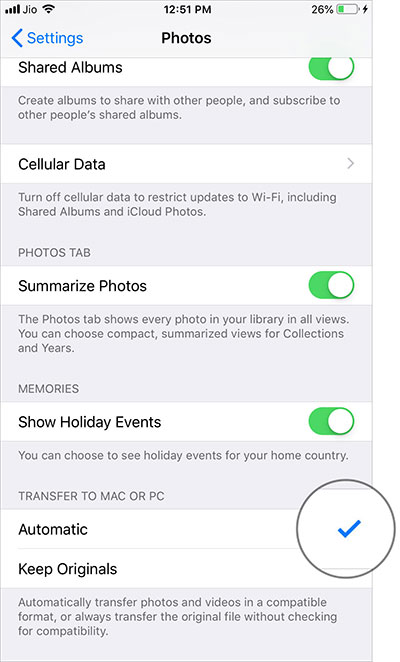
Automatically Convert HEIF Images into JPG When Transfering to Mac or PC

Both iOS 11 and 12 automatically convert HEIC to JPG when transferring the images to Mac or PC. So, if you ever faced the incompatibility hurdle, take advantage of this built-in option.

Step #1. Launch the Settings app on your iOS device → Photos.


How to Convert HEIC Images into JPEG Right on the iPhone and iPad
What if you don’t take the root mentioned above and wish to get it done right on your iOS device? It turns out, there is a trick to get it done!

Step #1. Once you have captured the HEIF image, open Photos app on your iOS device and head over to the pic.

Step #2. Now, tap on Edit and then use any tool like cropping, rotating or filter.


Tap on Edit and then use any tool like cropping, rotating or filter in iPhone Photos App


Step #3. Next, tap on Done to confirm.

Tap on Done to Convert HEIC Image into JPEG on iPhone

That’s it!

Check out the image has been converted to JPG. You can now use it with the software that doesn’t support HEIC.

Sponsor Ads:

Gihosoft Free iPhone Data Recovery is a professional iPhone Data Recovery software to get back all your lost text message, photo, video, call history, note, contact and more from iPhone/iPad/iPod Touch. It offers a full solution to recover your lost data in different tough situations. Besides recovering data directly from iPhone, iPad and iPod touch, it also allows you to recover data from iCloud and iTunes backup files.

iPhone backup unlocker:Recover iTunes Backup Password.

iPhone backup extractor free:The best iPhone Backup Extractor software to extract photos, text messages, contacts, voice memos, note, WhatsApp, Viber and etc from iPhone/iPad backup.

Monday, July 30, 2018

Fix iTunes “Back Up Now” Not Working/Greyed out after Mac OS Upgrade


Fix iTunes “Back Up Now” Not Working/Greyed out after Mac OS Upgrade


From this point onwards, let’s take a look at how to fix “iTunes backup now greyed out Mac” issue. Instead of one method, we present top easy methods to fix the said issue.
1Update iTunes to the Latest Version on Mac


Generally, iTunes notifies you in the event of a release of a new version. You can simply click in the popup menu and follow the onscreen instructions to get it done. However, if the notification doesn’t appear and you still want to update iTunes on your mac to fix “iTunes backup not working” issue, you should follow these steps.


Go to App Store.


Go to the “Updates” tab. Select “Software Updates” and click on “More”.


Locate the button called “Update” next to iTunes.


The new version will be updated automatically.


Launch iTunes to try the newest version.


2Restart Both of Your iOS Device and Mac


If the problem doesn’t work even after an update, you should try restarting both the iOS device and Mac to fix “iTunes backup greyed out” issue. Here’s how to do it.
To restart your iPhone X


Hold the Side button with a volume button to get the slider appeared.


Drag it to turn off the phone.


Press and hold the Side button to start the device again.


To restart iPhone 8 or older devices (including iPads)


Hold the top or side button to get the slider appeared.


Drag it to turn off the device.


Press and hold the side or top button to start the device.


To restart Mac


Hit Apple key and click on Restart option to restart your Mac.


3Change a Workable USB Cable


Sometimes the “iTunes backup now greyed out mac” can occur due to a bad USB cable. In this case, you should replace the USB cable with a new one and give it a try. If the problem persists, you should connect the USB cable into different ports.


4Update Apps on Your iPhone


Sometimes, outdated apps can be the reason behind “no backup option in iTunes” issue. In this case, you have to fix it by updating the apps.


Go to iPhone’s App Store icon.


Tap the Updates icon.


Select “Update All”.


Enter password when prompted.


5Make Sure There’s Enough Space On Your Mac


iTunes backup will not work if you Mac doesn’t have enough space. To check the space, you should:


Go to Apple Menu and select “About This Mac” option.


Select “More Info”.


Click “Storage” to see the available space.


6Check Your Mac’s Security Software


If the security software blocks iTunes, it will not permit to backup. To check it, you should:


Go to System Preferences.iPhone backup unlocker:Recover iTunes Backup Password.


Security (or Security & Privacy) icon.


Go to the Firewall tab and check if iTunes is blocked.


7Delete Corrupted Old iTunes Backups on Mac


A corrupted iTunes backup can cause problems and prevent you from backing up iTunes. Here’s how to delete it and fix it.


Go to iTunes and select “Devices” under “Preferences”.


Under Device Backups, you will find the old backup.


Click on it and delete it.


8 Delete the iTunes Preferences File on Mac


If you have changed the iTunes preferences on the Mac, you will experience some issues in creating backups. You can fix this issue simply by deleting the iTunes preference file. To do this, you should:iPhone backup extractor free:The best iPhone Backup Extractor software to extract photos, text messages, contacts, voice memos, note, WhatsApp, Viber and etc from iPhone/iPad backup.

Sponsor ads:

Gihosoft Free iPhone Data Recovery:iphonerecovery.com

Free iPhone Data Recovery Software for Windows/Mac

Recover up to 12+ types of files, including contacts, SMS, photos, WhatsApp, Viber, notes, etc.

Restore lost data from iOS devices directly or from iTunes and iCloud backup

Recover iPhone data lost due to iOS upgrade/jailbreak, accidental deletion, device lost or broken

Support all the latest iPhone, iPad and iPod Touch

Both Free and Pro version.

If you lost data after you updated to a new iPhone, you can always use Gihosoft iPhone Data Recovery to get the data back from the old iPhone or backup.

Worth reading:download youtube 1080p

Top 10 Best FRP Bypass Tools to Bypass Google Account on Android Device 2019
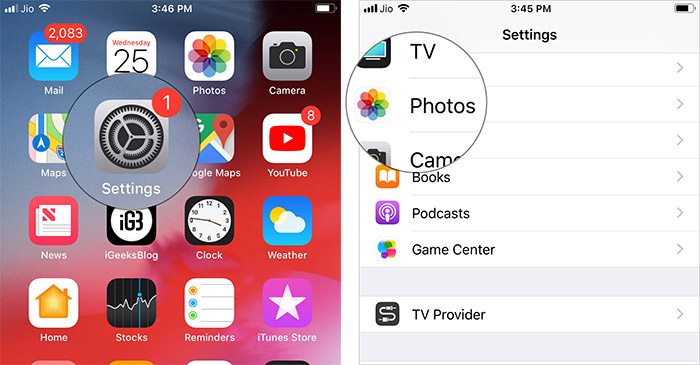


Go to Finder.


Press Alt/Option and click on Go.


Go to “Preferences” under “Library”.


Locate com.apple.iTunes.plist file and delete it.


Restart to finish the process.


Best iPhone 11 and iPhone 11 Pro Deals

It is rare to find good deals on new iPhones due to the initial rush. With the iPhone 11 and iPhone 11 Pro though, things are a bit differe...